User Manual
Overbearer is a transparent man-in-the-middle proxy that intercepts bearer tokens in HTTP/HTTPS traffic and replaces them on the fly. Services use harmless fake tokens that only work through the proxy; the real secrets never leave the encrypted vault. This manual walks through every view in the management console.
Authentication
Login
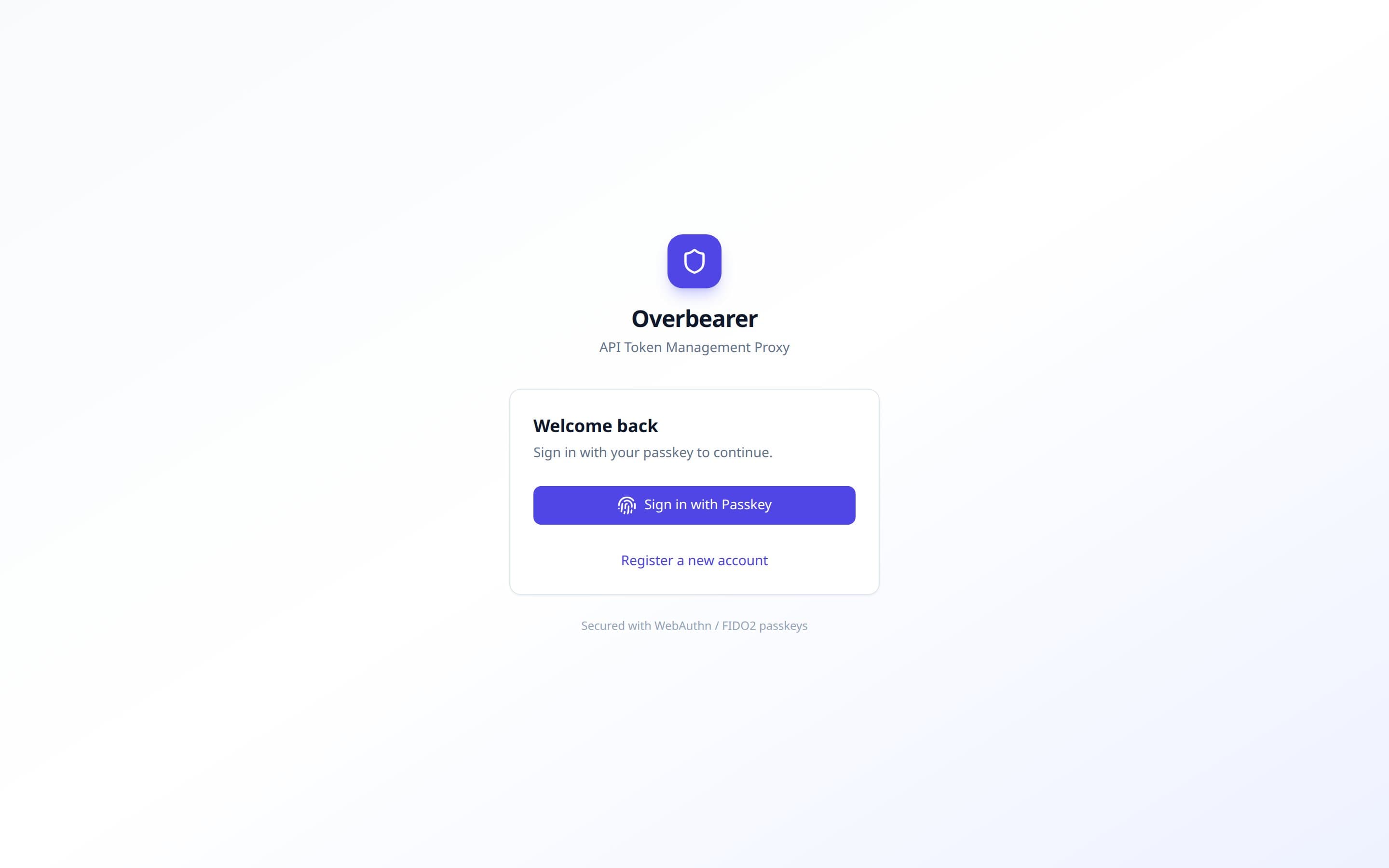
Overbearer uses WebAuthn passkeysexclusively — there are no passwords. The login screen presents a single “Sign in with Passkey” button that triggers your browser's built-in passkey dialog (Touch ID, Windows Hello, hardware security key, etc.).
Below it, a “Register a new account” link lets pre-created users complete their passkey registration. Accounts must be created by an admin first; there is no open self-registration.
First-Time Setup
When the database is empty (fresh deployment), the login page automatically switches to a setup screen where you choose a username and display name. This creates the first user as an admin and signs you in immediately — no passkey required for this initial bootstrap. You should register a passkey afterwards from the Settings page.
Role-Based Access
Overbearer has four roles, listed from lowest to highest privilege:
| Role | Sidebar Navigation | Capabilities |
|---|---|---|
| Requester | Dashboard, Token Requests | Submit token access requests. View own request status. |
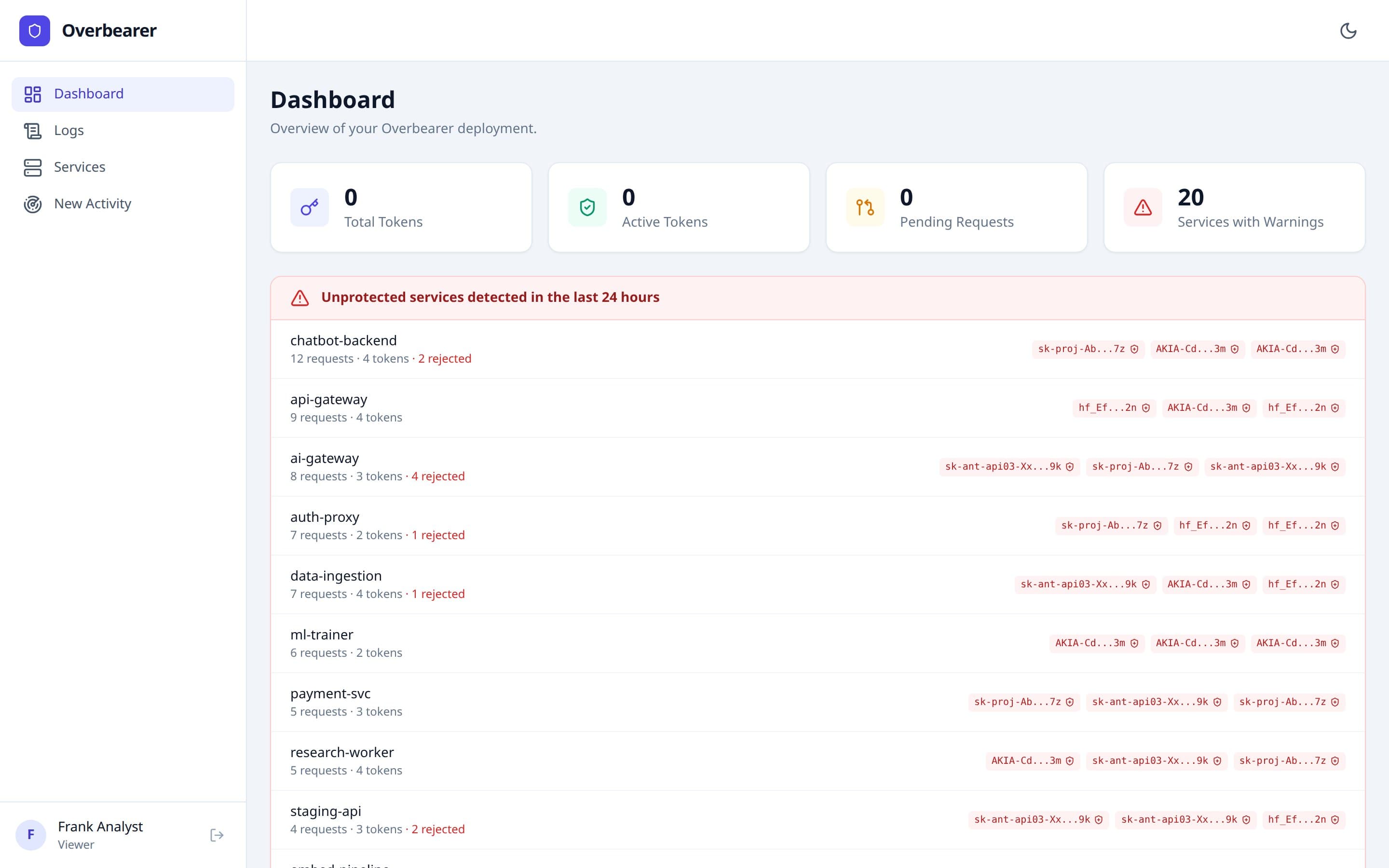
| Viewer | Dashboard, Logs, Services, New Activity | Read-only access to proxy logs and service monitoring. Logs are scoped to tokens the viewer has been granted access to. |
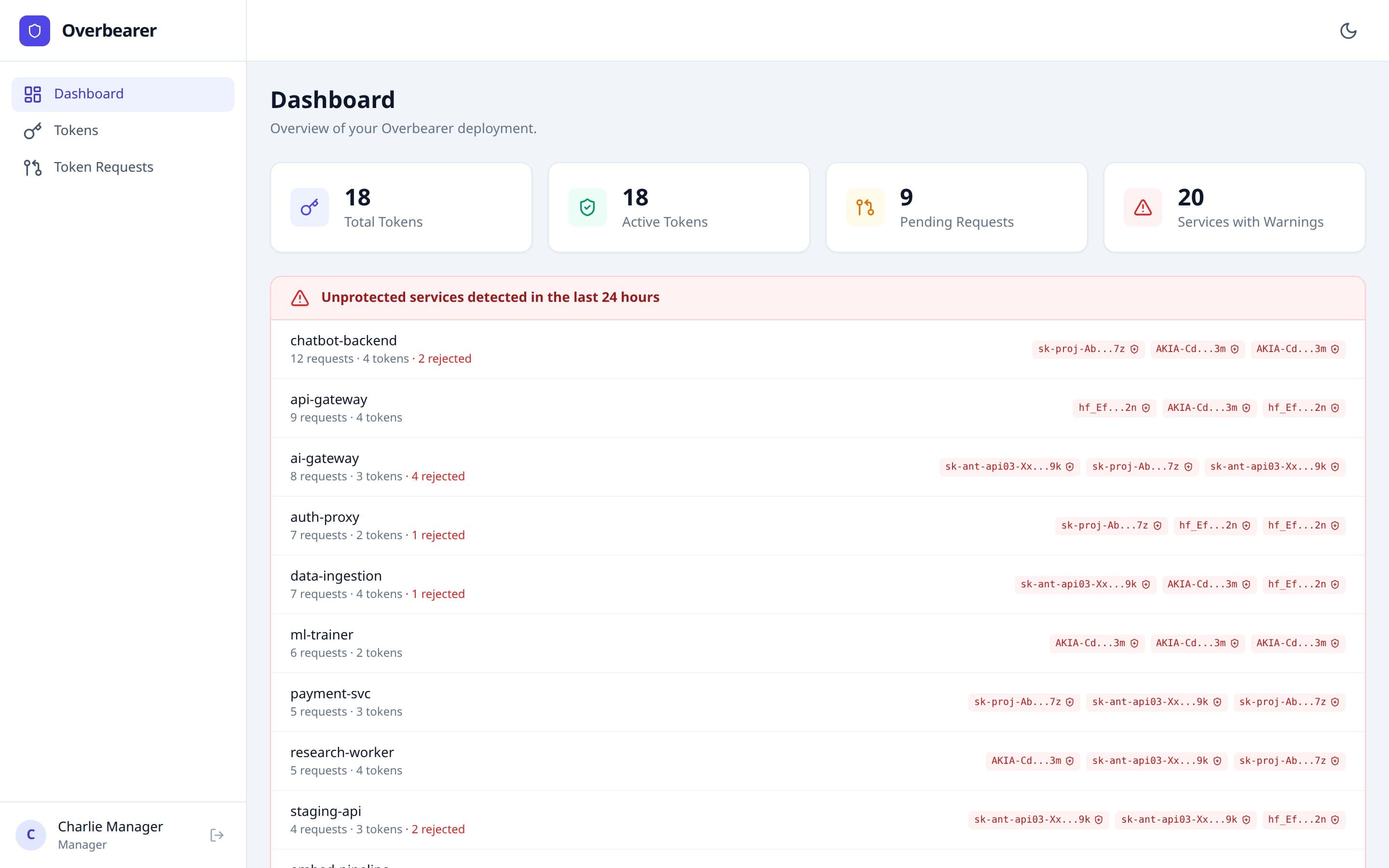
| Manager | Dashboard, Tokens, Token Requests | Create, rotate, and revoke token mappings. Approve or deny token requests. Manages tokens they created and tokens accessible via group membership. |
| Admin | All pages | Full access. Manage users, groups, CA certificates, proxy ACLs, and all tokens regardless of ownership. |
The sidebar adapts to show only the pages available to the current user's role. The bottom of the sidebar always displays the logged-in user's name and role.
Dashboard
Minimum role: any authenticated user
Admin view
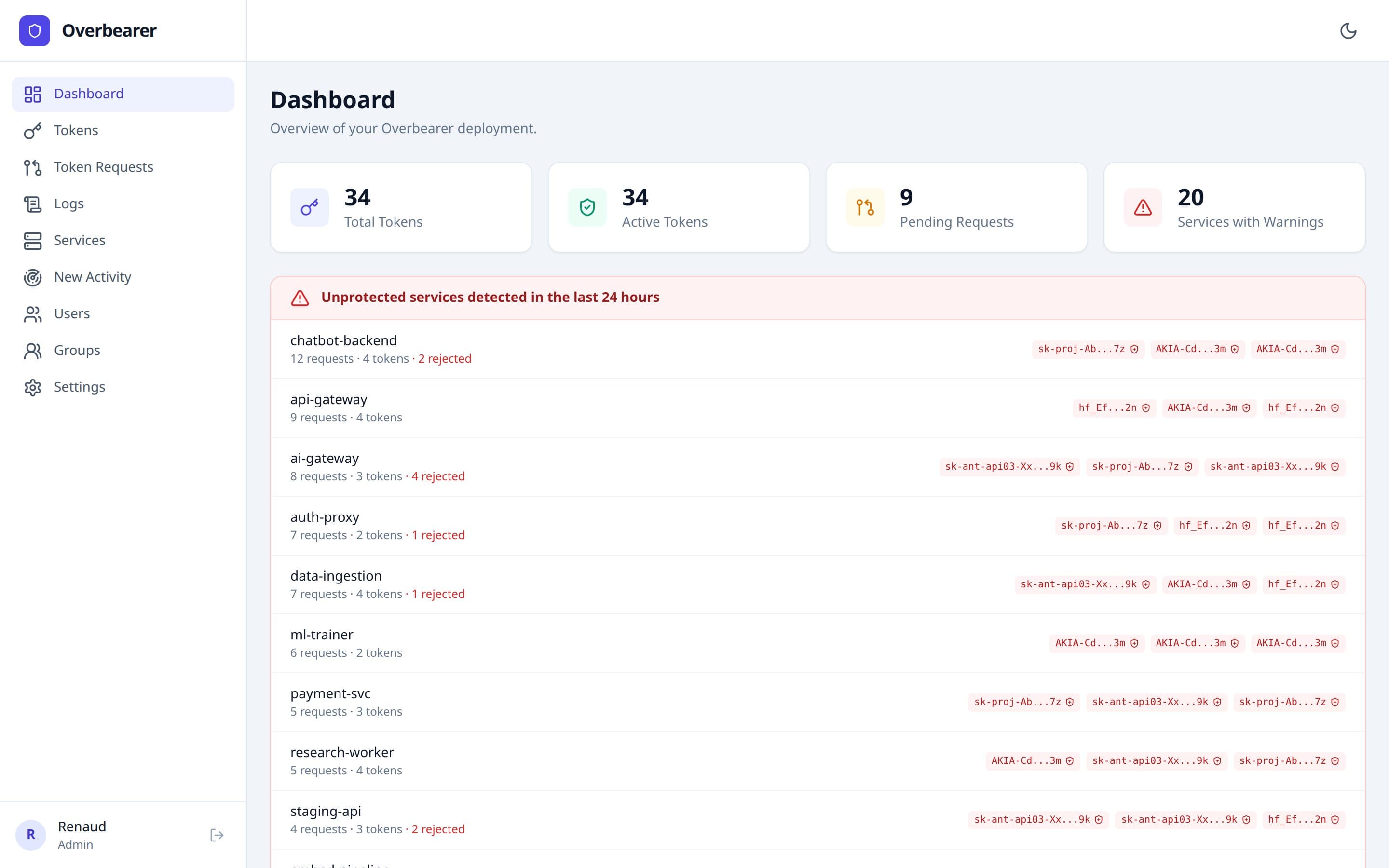
Manager view
Viewer view
Requester view
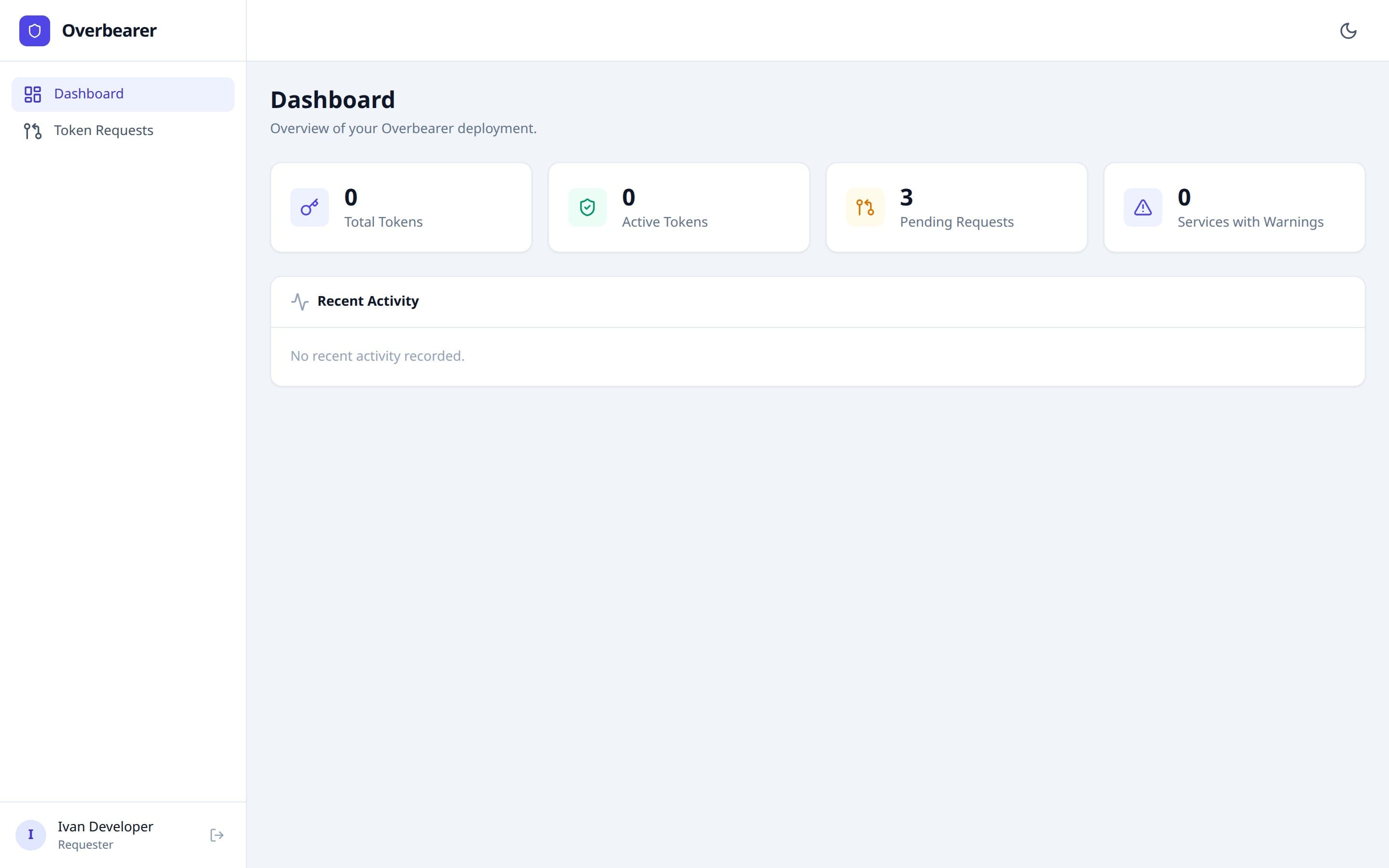
The dashboard provides a quick overview of the deployment through four stat cards:
- Total Tokens — number of token mappings (active + revoked) visible to the current user.
- Active Tokens — non-revoked tokens only.
- Pending Requests — token requests awaiting approval.
- Services with Warnings — count of services that sent real API tokens directly through the proxy in the last 24 hours, bypassing the fake-token mechanism.
Unprotected Services Alert
When any services are detected using real tokens directly (i.e. not going through fake-token replacement), a red-bordered alert section appears below the stat cards. Each row shows:
- The service name (identified via Kubernetes pod IP resolution).
- The request count and number of distinct tokens observed.
- Rejected count (HTTP 403 responses).
- Token previews — clickable badges showing the first/last characters of the intercepted real token. Clicking a preview opens a Capture Token modal that lets you automatically intercept the real token from the ClickHouse logs, encrypt it, and generate a safe fake replacement in one step.
Recent Activity
A timeline at the bottom shows the last 10 proxy log entries, each with a colored dot indicating the token type:
- Green — fake token (protected)
- Red — real token used directly (unprotected)
- Gray — unknown token type
Each entry shows the originating service, the HTTP method and path, and the timestamp.
Tokens
Minimum role: Manager
Admin view
Manager view
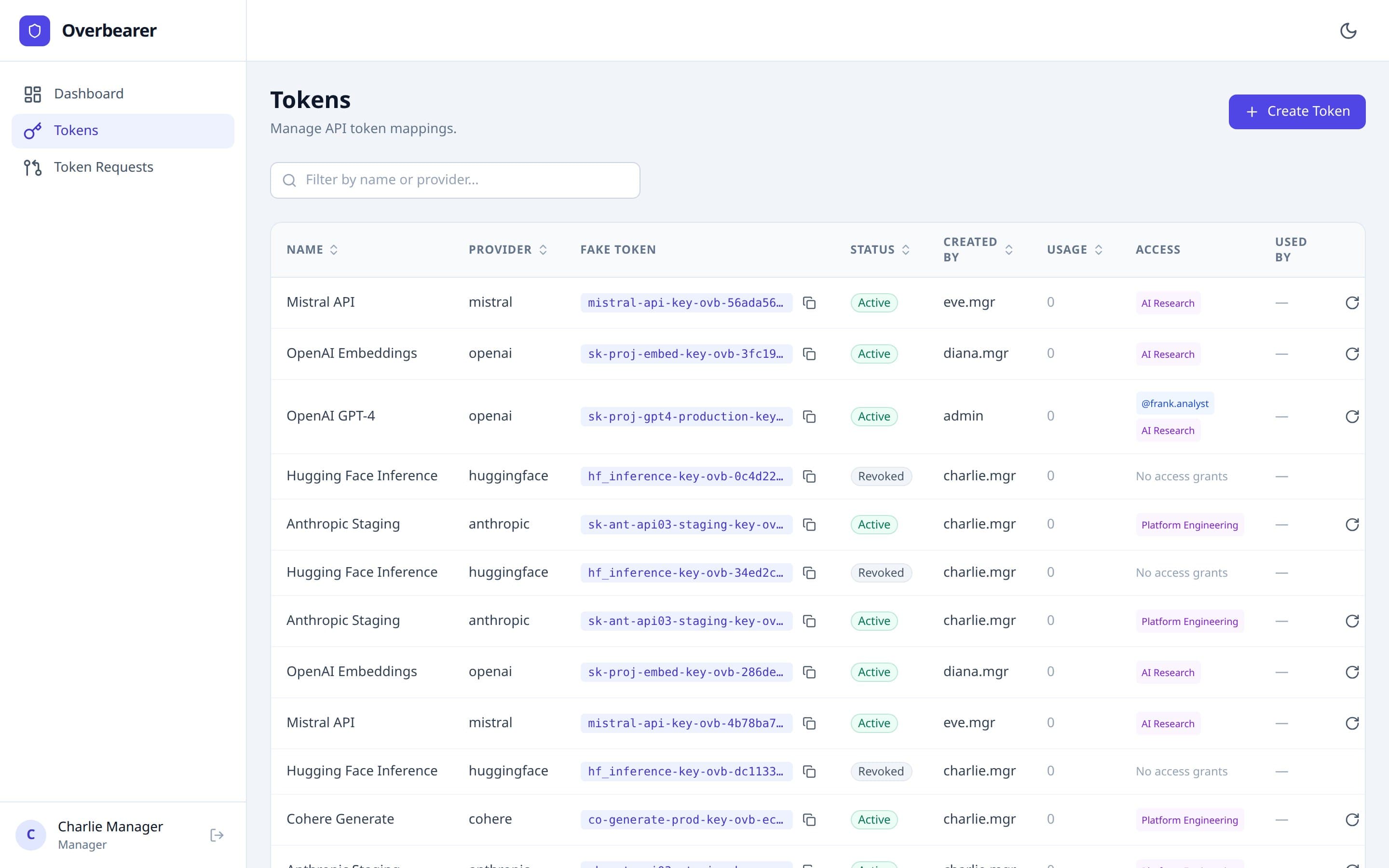
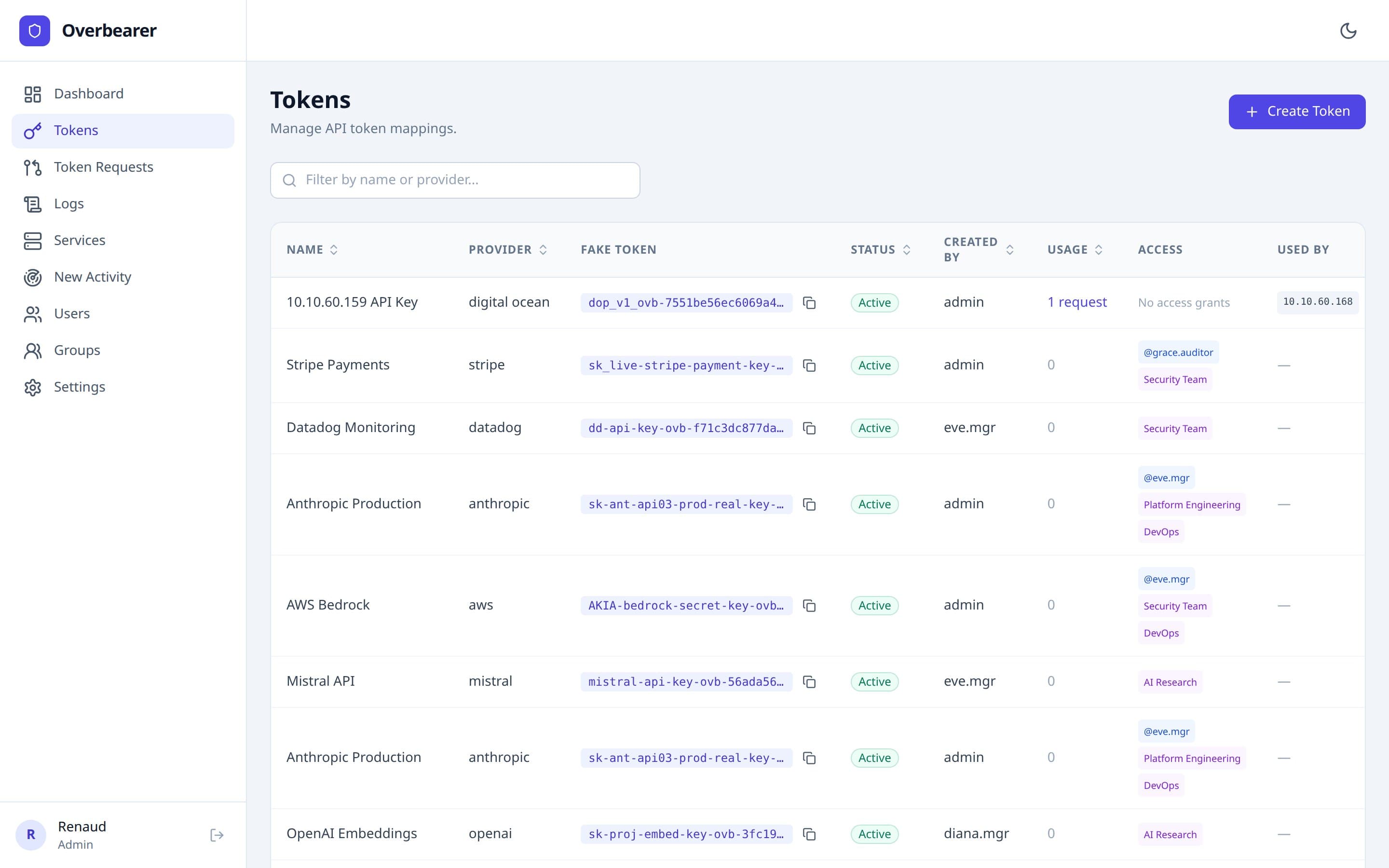
The Tokens page is the core of Overbearer's secret management. It displays a sortable, searchable table of all token mappings visible to the current user.
Table Columns
| Column | Description |
|---|---|
| Name | Human-readable label for the token mapping. |
| Provider | The external API provider (e.g. anthropic, openai, stripe). |
| Fake Token | The safe replacement token that services use. Shown as a monospaced code snippet with a copy button. |
| Status | Active (green) or Revoked (red). Revoked tokens are no longer replaced by the proxy. |
| Created By | The username of the manager or admin who created the mapping. |
| Usage | Number of proxy requests that used this fake token, as reported by ClickHouse. |
| Access | Shows which users and groups have been granted access to this token. |
| Used By | Services that have used this fake token, shown as small code badges. |
Actions
Each active token row has two action buttons:
- Rotate— opens a modal to provide a new real token value. The fake token stays the same, so services don't need to change anything. Only the encrypted real secret is swapped.
- Revoke— opens a confirmation dialog. Revoking a token marks it as inactive, removes it from the proxy's memcached cache, and causes any service still using the old fake token to get unmodified requests forwarded.
Creating a Token
Click the “+ Create Token” button in the top right. The modal asks for:
- Name— a descriptive label (e.g. “Production OpenAI key”).
- Provider — free-text field for the API provider.
- Real Token — the actual API secret. This is encrypted with AES-256-GCM and never stored in plaintext.
After creation, a second modal displays the generated fake token. This fake token preserves the prefix of the real token (e.g. sk-ant-api03-ovb-...) so target APIs don't reject it on format alone. Copy it and distribute it to the service owners.
Token Detail & Access Management
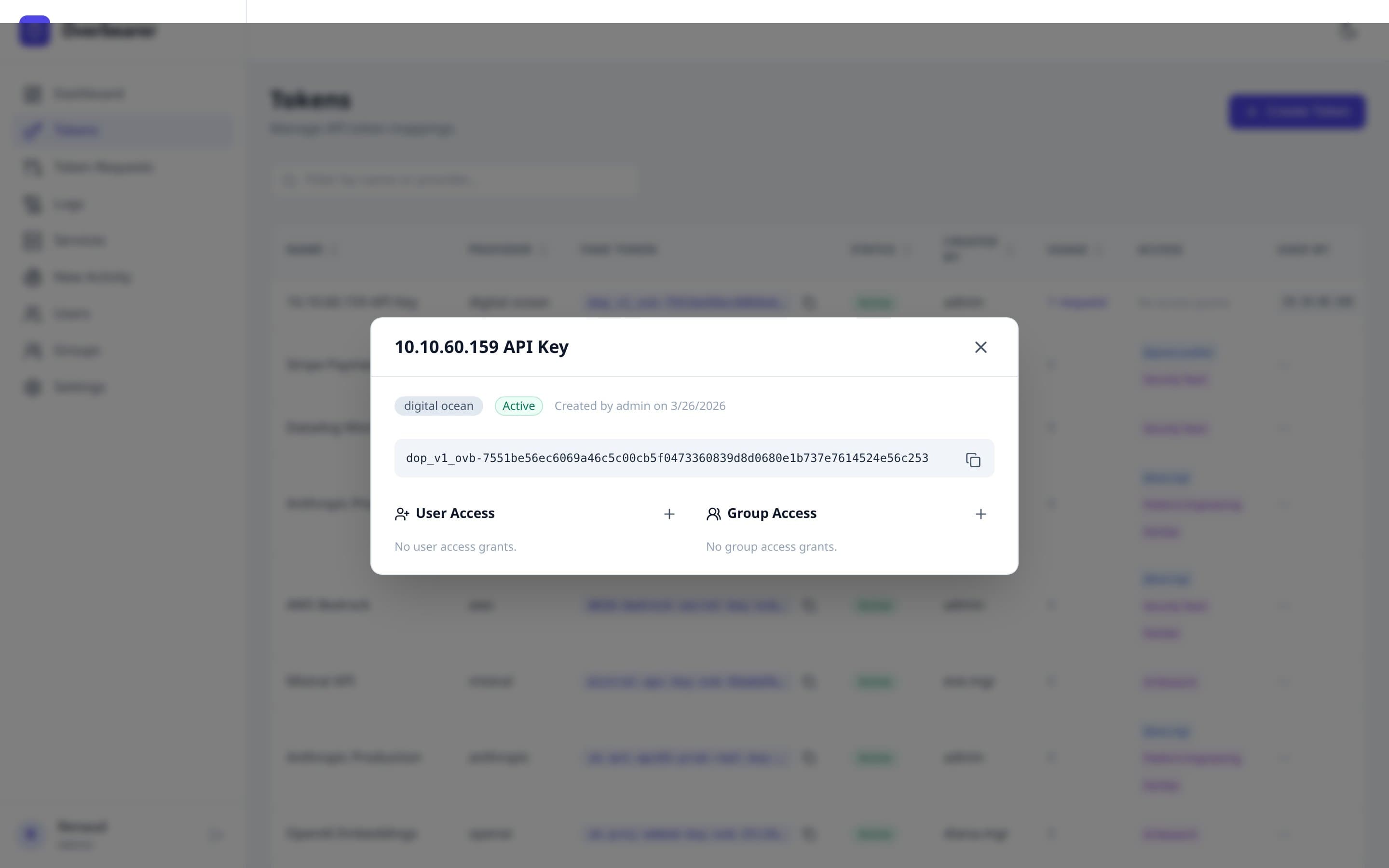
Clicking any row in the token table opens a detail modal showing:
- Provider badge and status badge (Active / Revoked).
- The fake token value with a copy button.
- Created by and creation date.
Below the token info, two columns let you manage who has access:
- User Access — lists individual users who have been granted access to this token. Click + to grant access, click the red X to revoke.
- Group Access — same pattern for groups. Granting access to a group gives all members of that group access to the token and its logs.
Access changes take effect immediately.
Visibility Rules
- Admins see all tokens across the entire organization.
- Managers see tokens they created, plus tokens accessible via their group memberships or direct access grants.
Search
The search bar above the table filters tokens by name or provider in real time.
Token Requests
Minimum role: Requester (submit), Manager (review)
Admin view
Manager view
Requester view
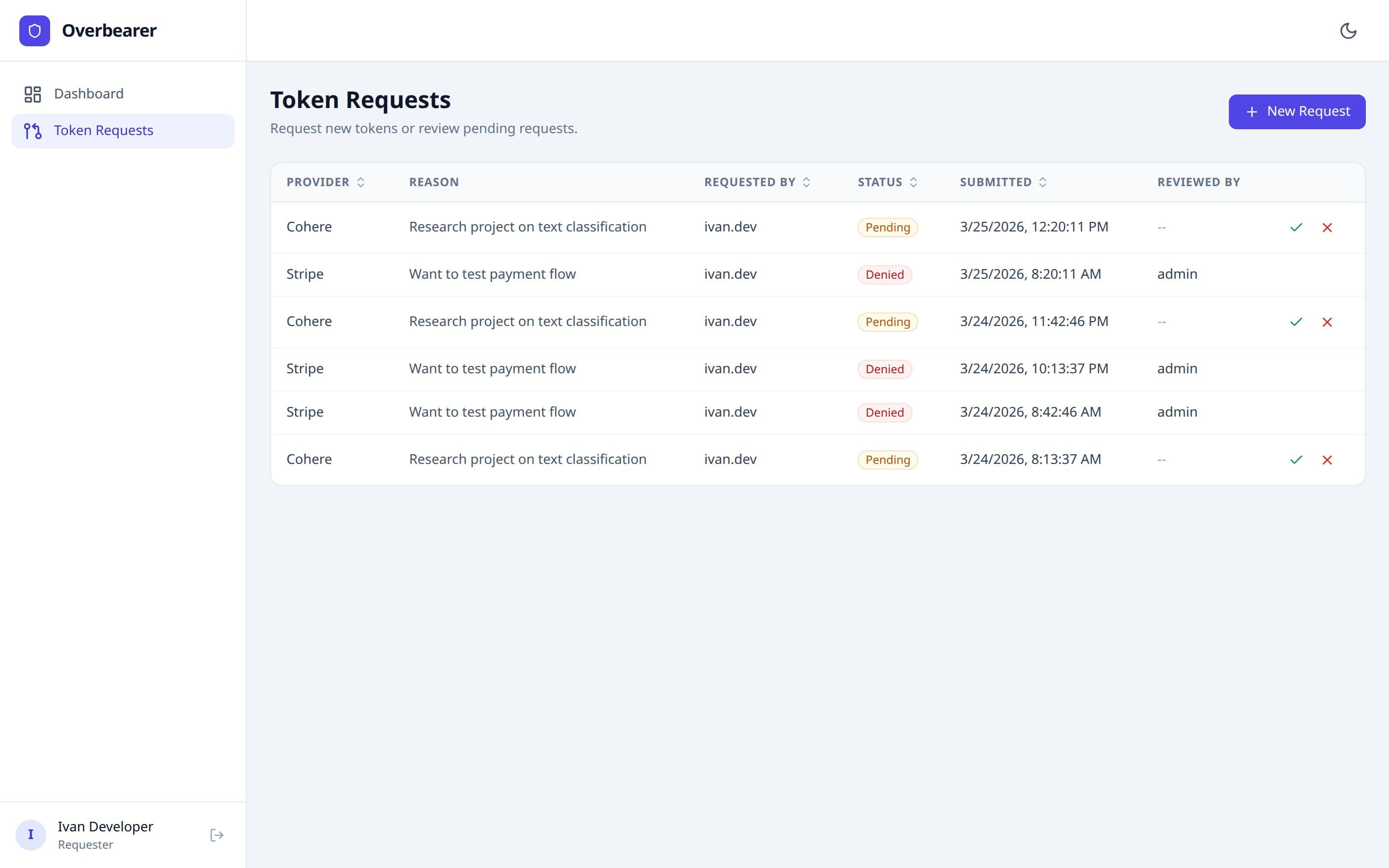
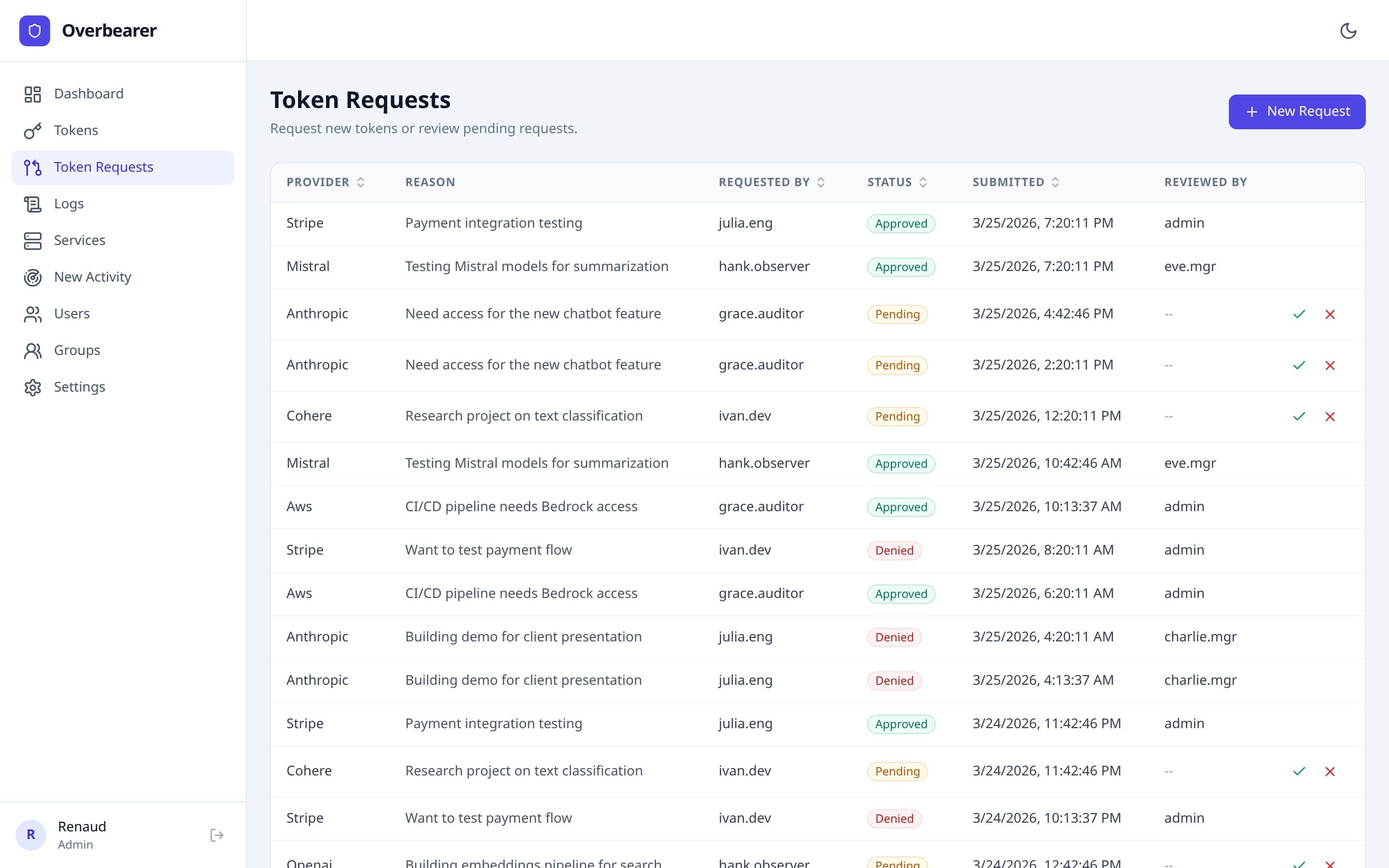
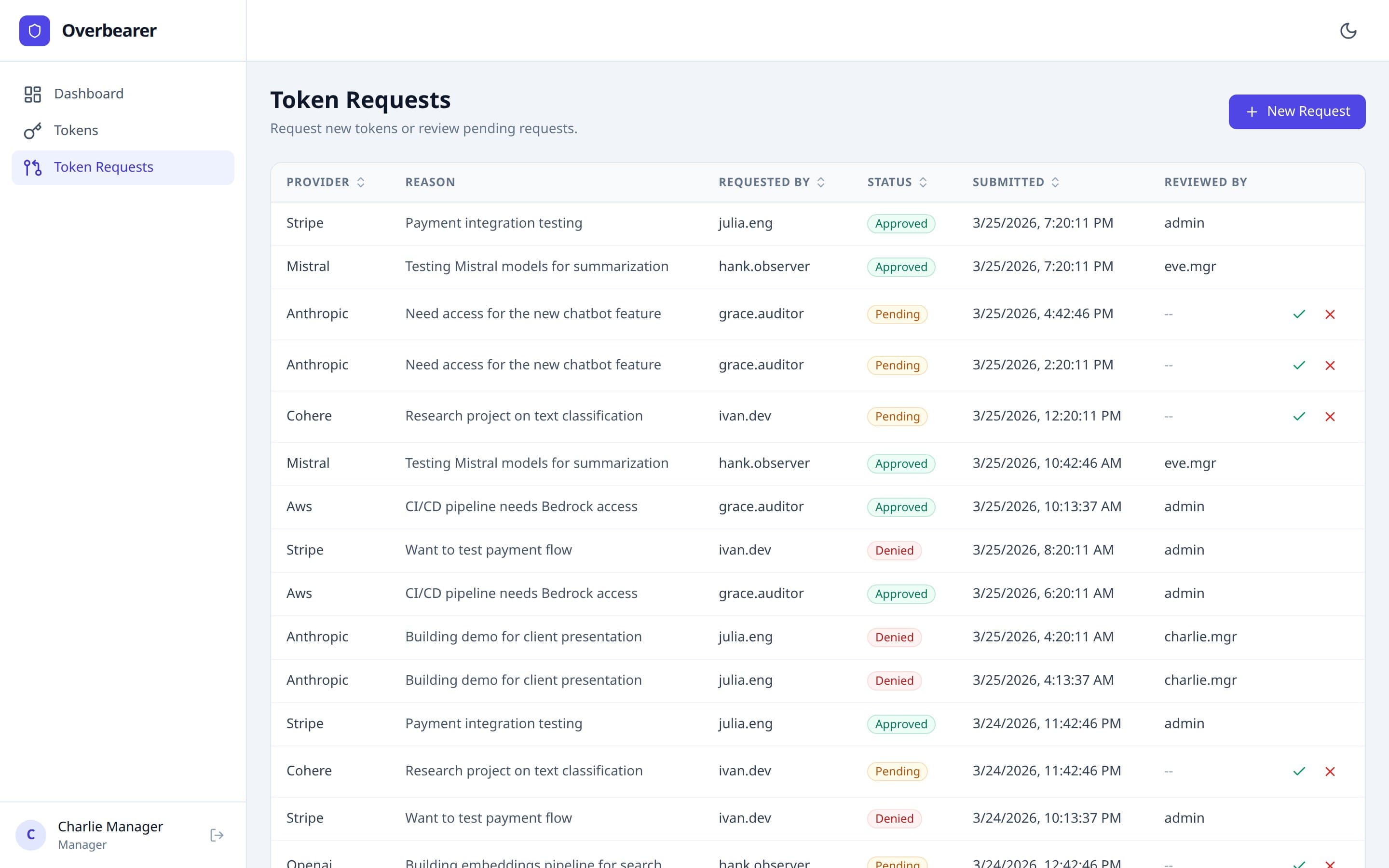
The Token Requests page implements a self-service workflow. Users who don't have direct token access can request it, and managers approve or deny.
Table Columns
| Column | Description |
|---|---|
| Provider | The external API provider being requested. |
| Reason | Free-text justification for the request. |
| Requested By | Username of the person making the request. |
| Status | Pending (orange), Approved (green), or Denied (red). |
| Submitted | Timestamp of when the request was created. |
| Reviewed By | Username of the manager/admin who acted on the request, or -- if still pending. |
Submitting a Request (Requester)
Click “+ New Request”. The modal has a Provider dropdown (OpenAI, Anthropic, GitHub, AWS, GCP, Azure, Stripe, Other) and a Reason text area explaining why the token is needed. After submission the request appears with Pending status.
Reviewing Requests (Manager / Admin)
Pending requests show two action buttons:
- Approve — opens an approval modal where the manager provides a Token Name and the Real Token value. Approving simultaneously creates a new token mapping and grants access to the requester.
- Deny — immediately marks the request as denied.
Requesters only see their own requests. Managers and admins see all requests.
Logs
Minimum role: Viewer
Admin view
Viewer view
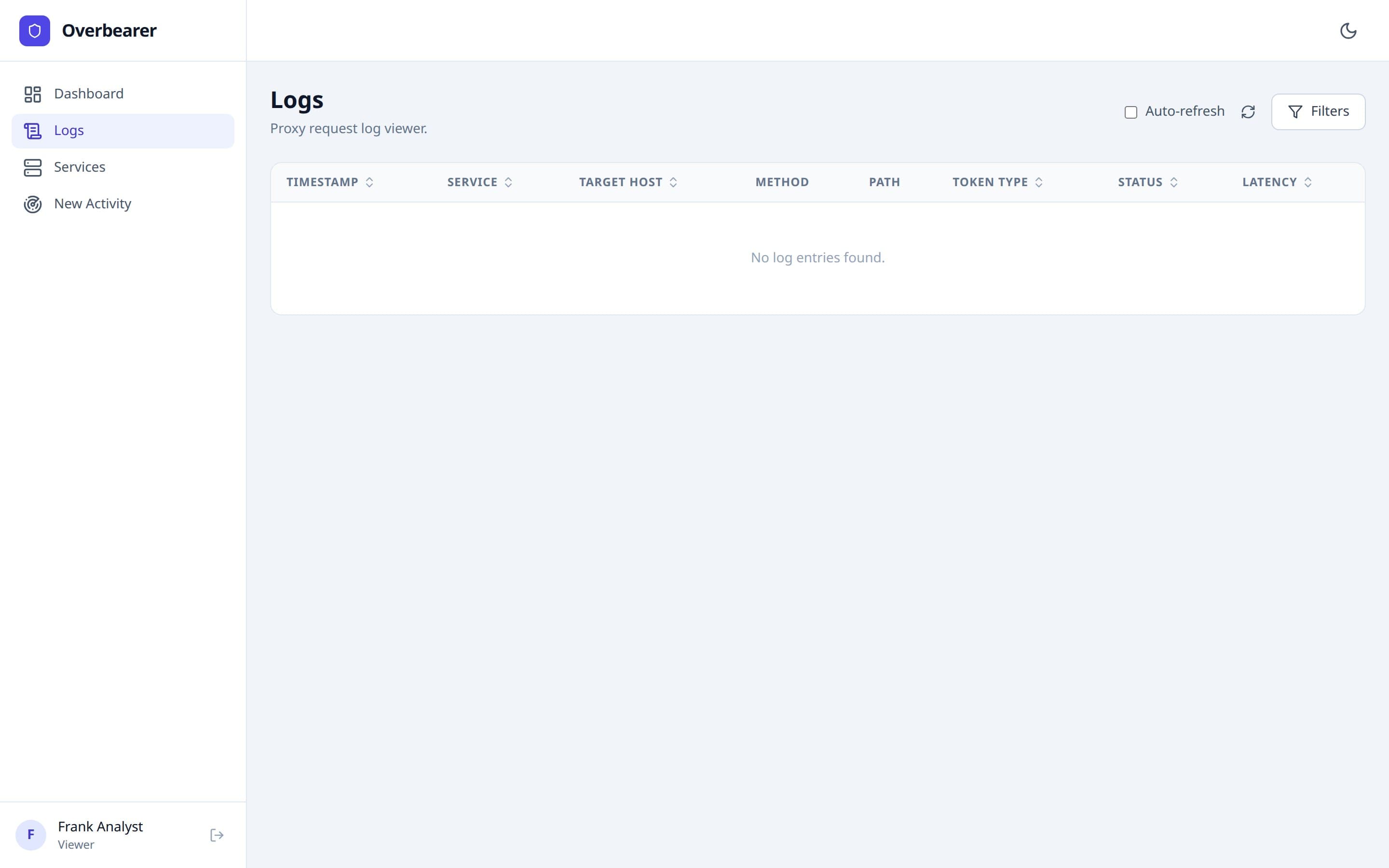
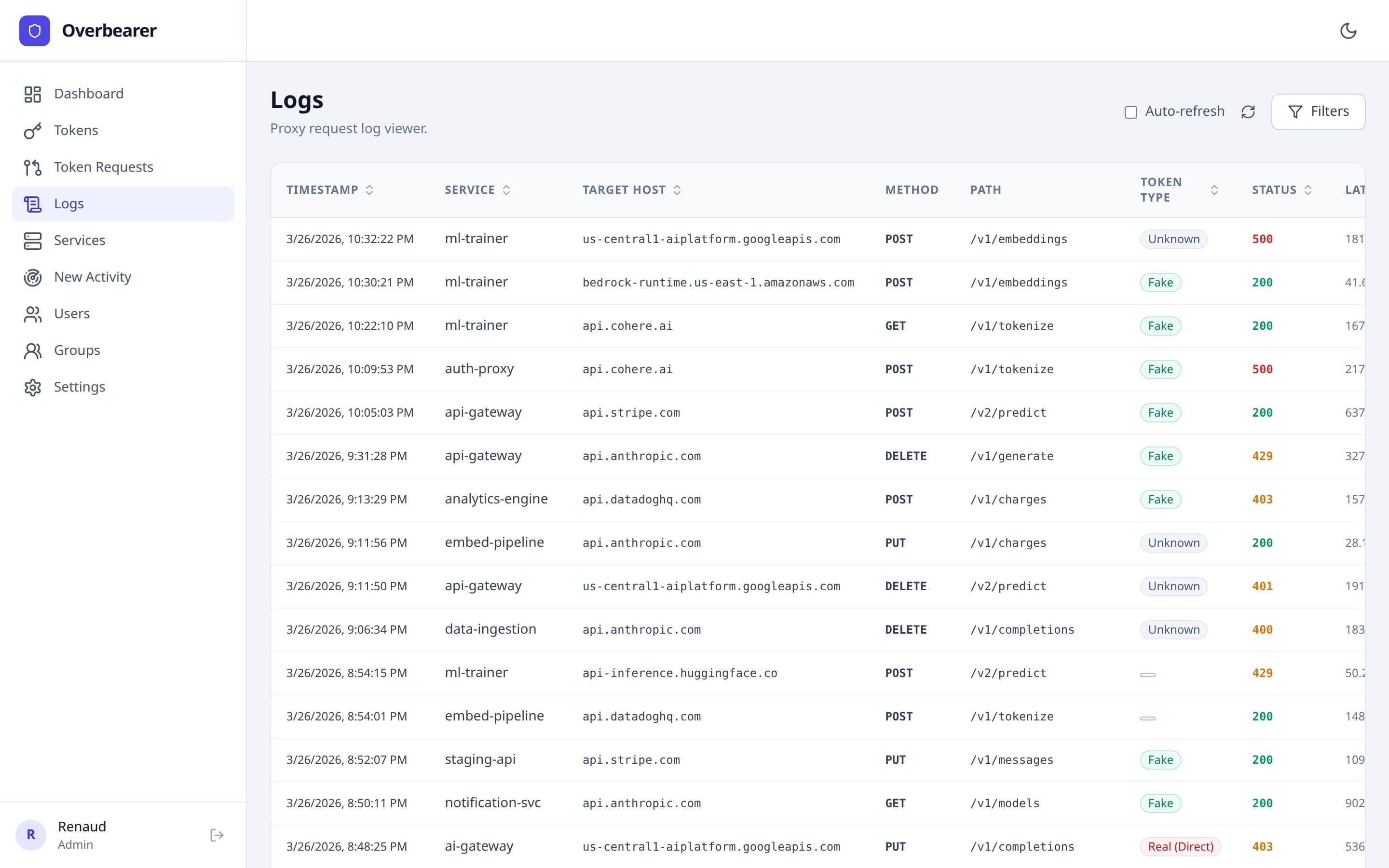
The Logs page is a real-time viewer for every HTTP request that flows through the Overbearer proxy. Log data is stored in ClickHouse and supports high-volume time-series queries.
Table Columns
| Column | Description |
|---|---|
| Timestamp | When the request was proxied, with millisecond precision. |
| Service | The originating Kubernetes service name (resolved from pod IP). |
| Target Host | The external API hostname (e.g. api.anthropic.com). |
| Method | HTTP method (GET, POST, PUT, DELETE). |
| Path | The request path (e.g. /v1/messages). |
| Token Type | Color-coded badge: Fake (green) = properly replaced, Real Direct (red) = real token seen in the wild, Unknown (gray) = no recognized token header. |
| Status | HTTP response status code, color-coded: green for 2xx, amber for 3xx/4xx, red for 5xx. |
| Latency | Round-trip time in milliseconds. |
Filtering
Click the “Filters” button in the top right to expand a panel with five filter fields:
- Start Date / End Date — datetime pickers to narrow the time range.
- Service — filter by originating service name.
- Target Host — filter by destination hostname.
- Token Type — dropdown: All, Fake, Real (Direct), Unknown.
Filters are applied server-side and the table paginates (25 rows per page).
Auto-refresh
Toggle the “Auto-refresh” checkbox to poll for new log entries every 5 seconds. The refresh icon spins while loading.
Viewer Scoping
Viewers only see logs for tokens they have been explicitly granted access to (via direct user access or group membership). If no access has been granted, the table is empty. Admins see all logs with no restrictions.
Services
Minimum role: Viewer
Admin view
Viewer view
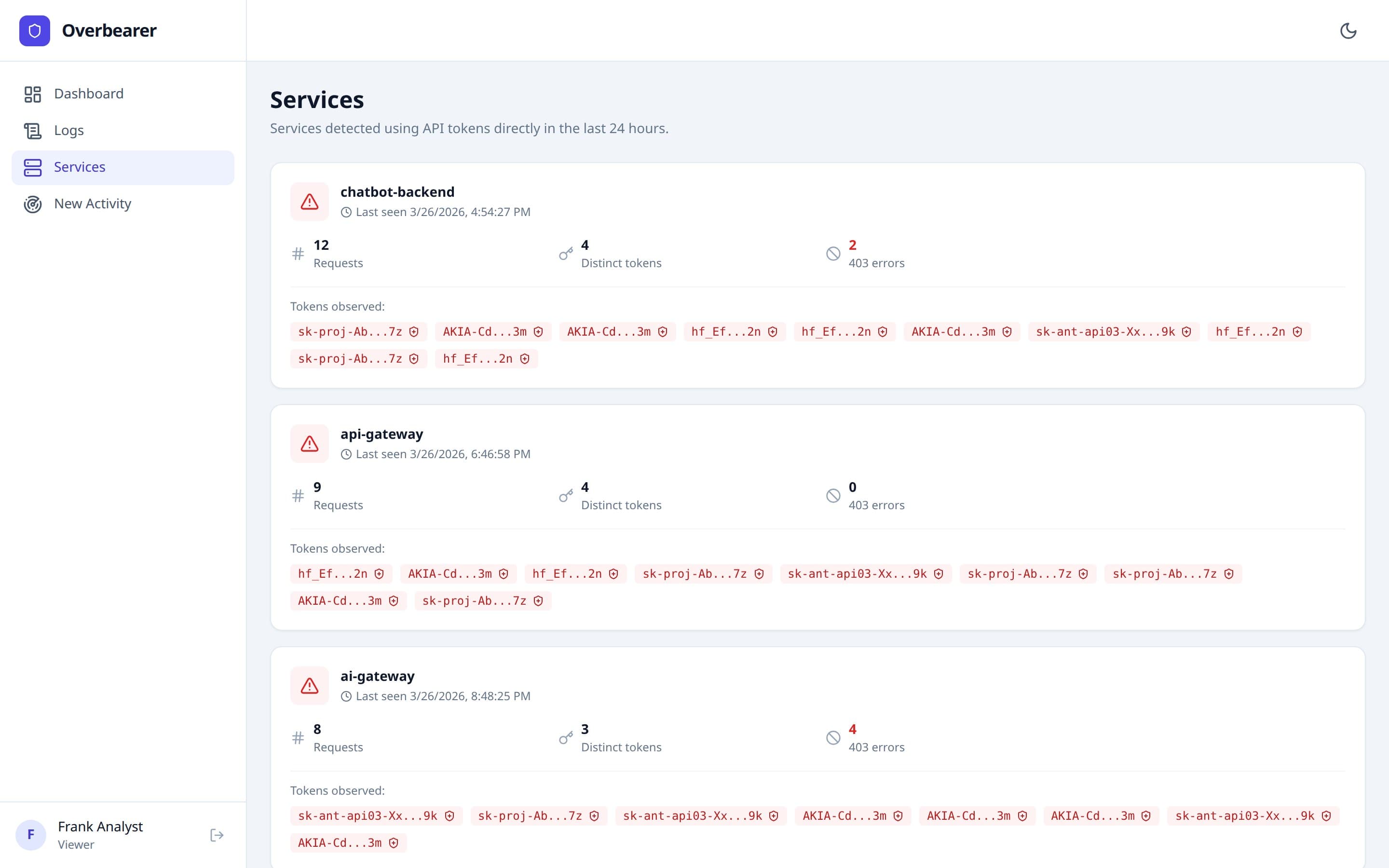
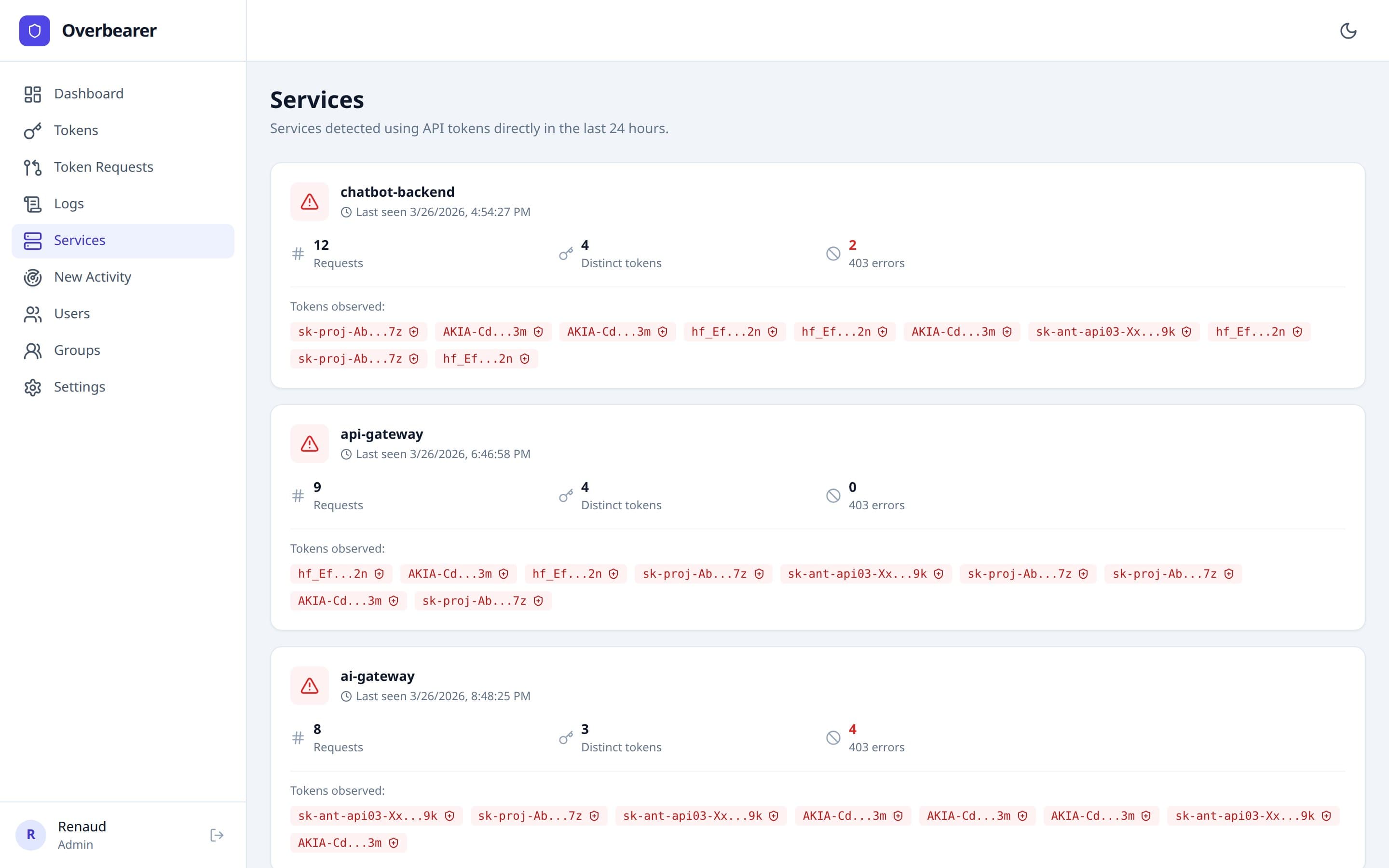
The Services page highlights a critical security concern: services that are sending real API tokens directly through the proxy instead of using fake tokens. These are services that haven't been onboarded to Overbearer yet.
Each service is displayed as an expandable card showing:
- Service name — the Kubernetes service that was detected.
- Request count and distinct token count in the last 24 hours.
- Forbidden count — how many requests received HTTP 403 (ACL denied).
- Last seen timestamp.
- Token previews — the first/last characters of each unique real token observed. Each preview is a clickable red badge.
One-Click Token Capture
Clicking a token preview badge opens a Capture Token modal. The capture flow:
- Looks up the encrypted token from the ClickHouse logs.
- Decrypts it using the master key.
- Creates a new fake-token mapping.
- Returns the generated fake token for you to distribute.
This lets you onboard unprotected services without ever asking the service owner for the real token — the proxy already intercepted it.
New Activity
Minimum role: Viewer
Admin view
Viewer view
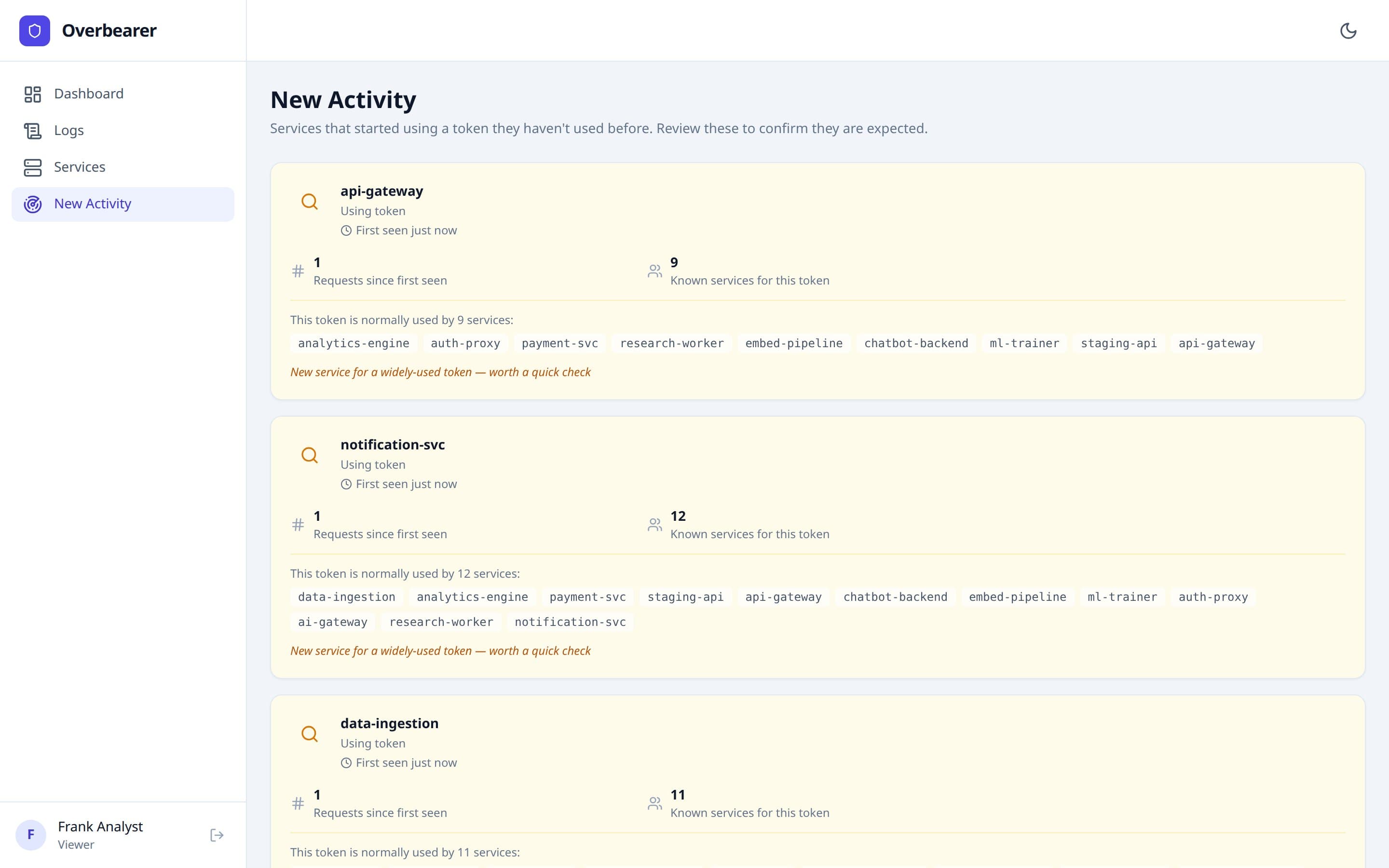
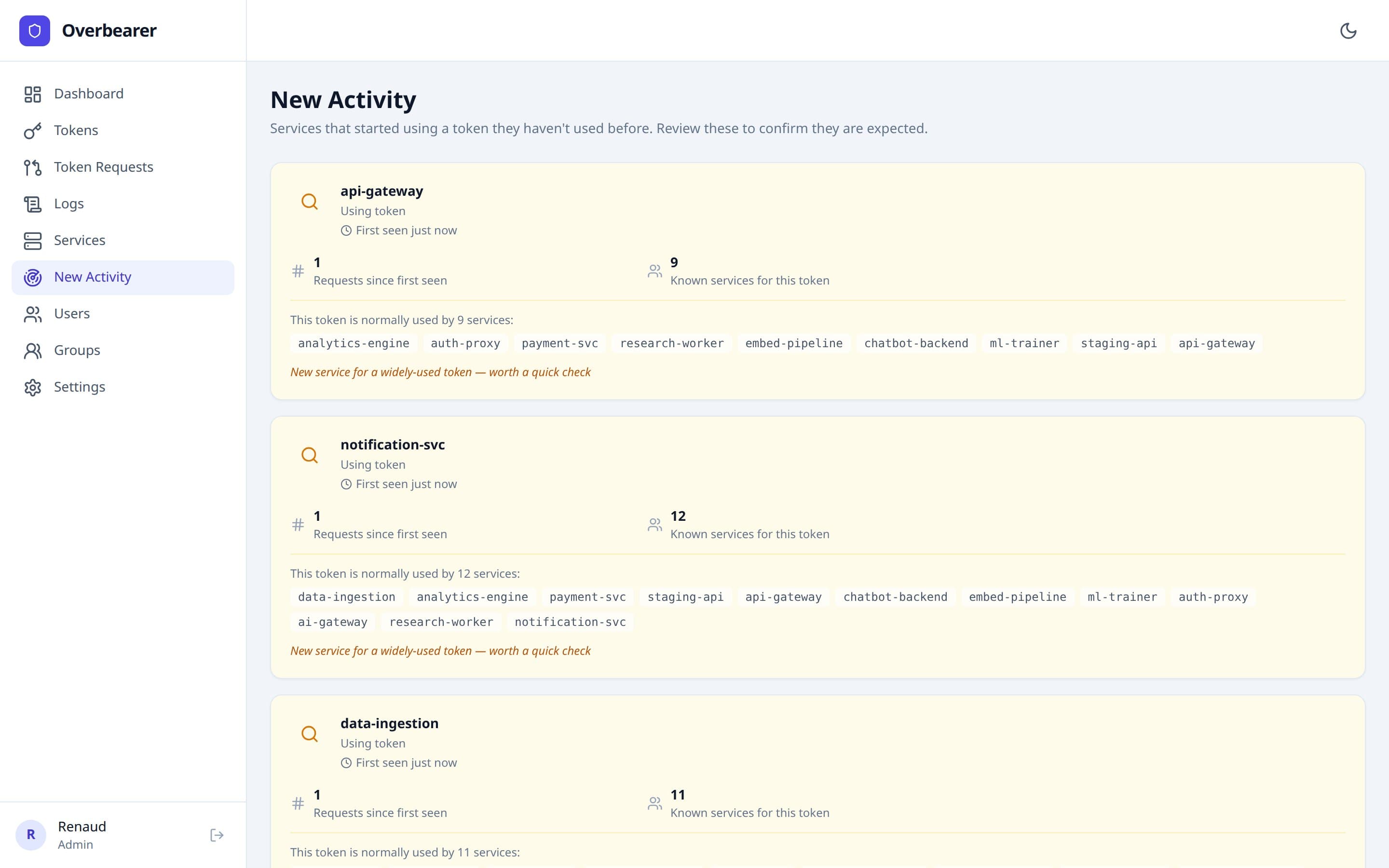
The New Activity page surfaces new service-token associations — cases where a service started using a token it has never used before. This is an anomaly-detection view useful for spotting:
- A service that was just given a new token.
- A token that leaked to an unexpected service.
- A lateral movement attempt in the network.
Each card shows:
- Token name and provider (resolved from PostgreSQL) with the token ID.
- First seen timestamp (relative and absolute).
- Request count since first use.
- All known services that currently use this token, so you can compare expected vs. unexpected usage.
- A link to the Logs page pre-filtered for that token-service pair.
The lookback window defaults to 24 hours. When no new associations are detected, a green “All clear” message is shown.
Users
Minimum role: Admin
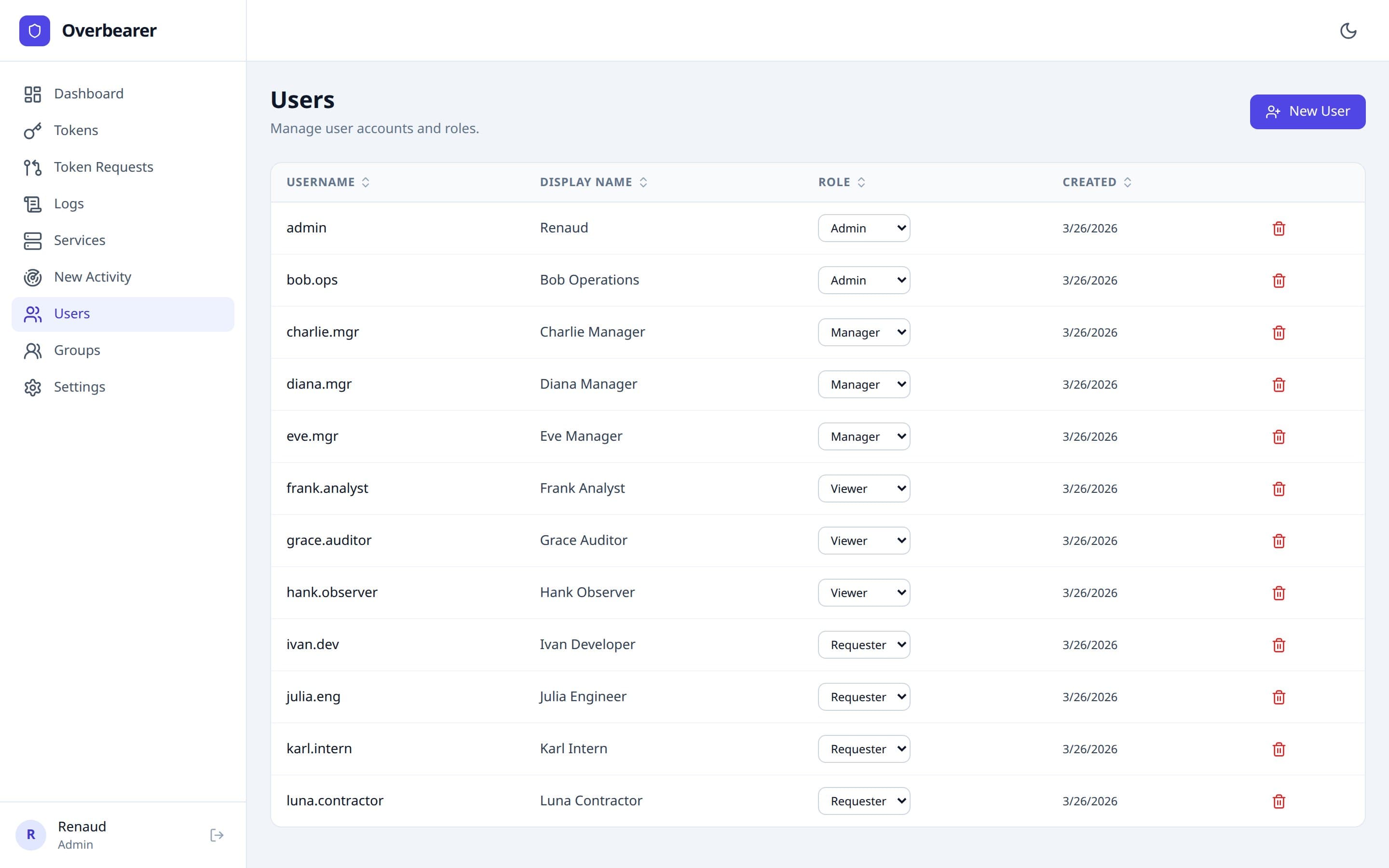
The Users page lets admins manage accounts and their roles:
| Column | Description |
|---|---|
| Username | The unique login identifier. |
| Display Name | Human-readable name shown in the sidebar and audit logs. |
| Role | An inline dropdown selector that lets admins change a user's role instantly. Options: Admin, Manager, Viewer, Requester. |
| Created | Account creation date. |
| Delete | Red trash icon to permanently delete a user (with confirmation dialog). |
Creating a User
Click “+ New User” to open the creation modal:
- Username — must be unique, 2–255 characters.
- Display Name — optional; defaults to the username.
- Role — select from the four roles.
Clicking “Create & Generate Invite” creates the user account and generates a one-time invite link valid for 7 days. Copy this link and send it to the new user. When they visit the link, they'll register a passkey and gain access.
Groups
Minimum role: Admin
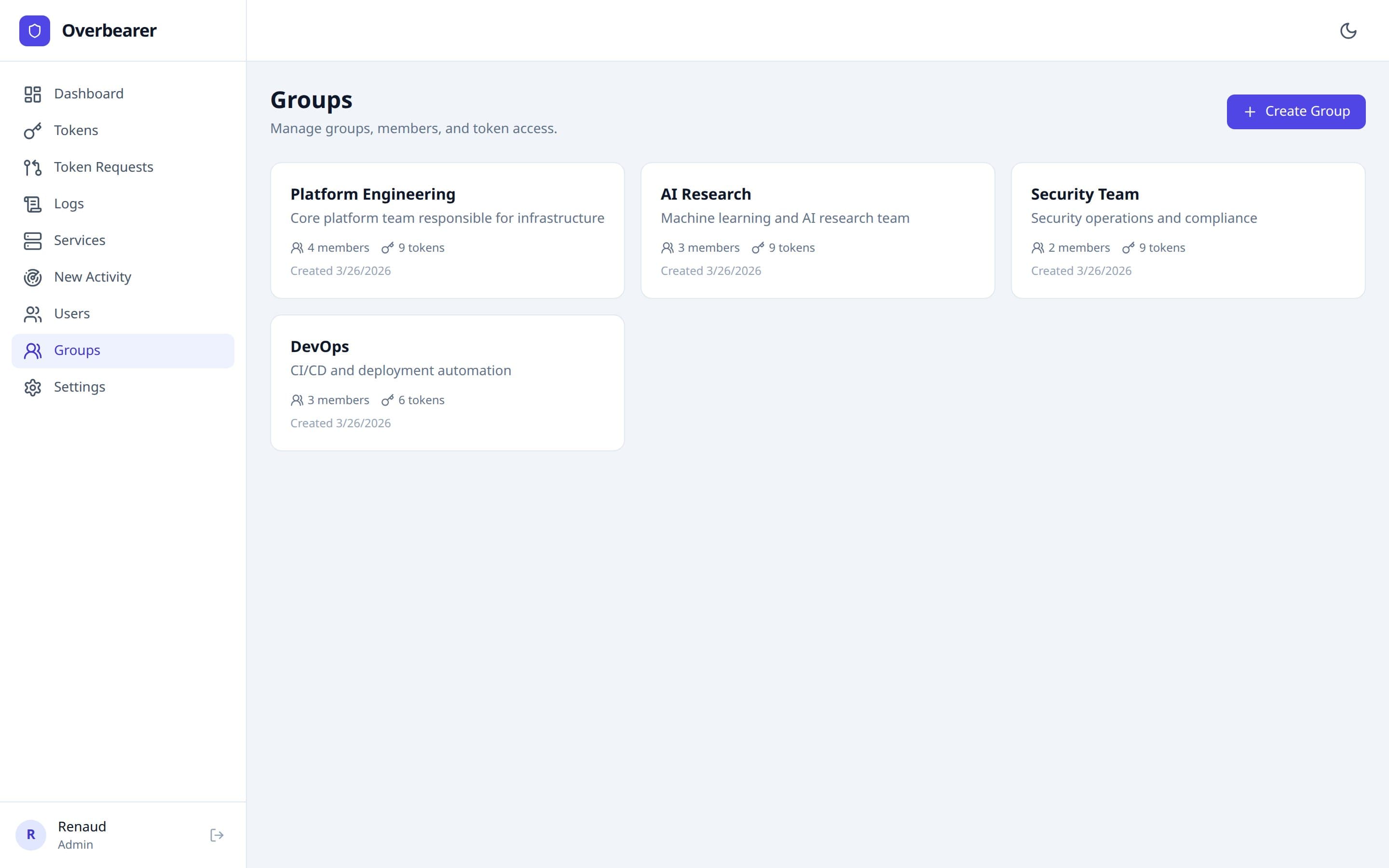
Groups let you organize users into teams and manage token access in bulk. Each group card shows:
- Group name and description.
- Member count (user icon with number).
- Token count (key icon with number) — how many tokens the group has been granted access to.
- Creation date.
Creating a Group
Click “+ Create Group” and provide a name and optional description.
Group Detail
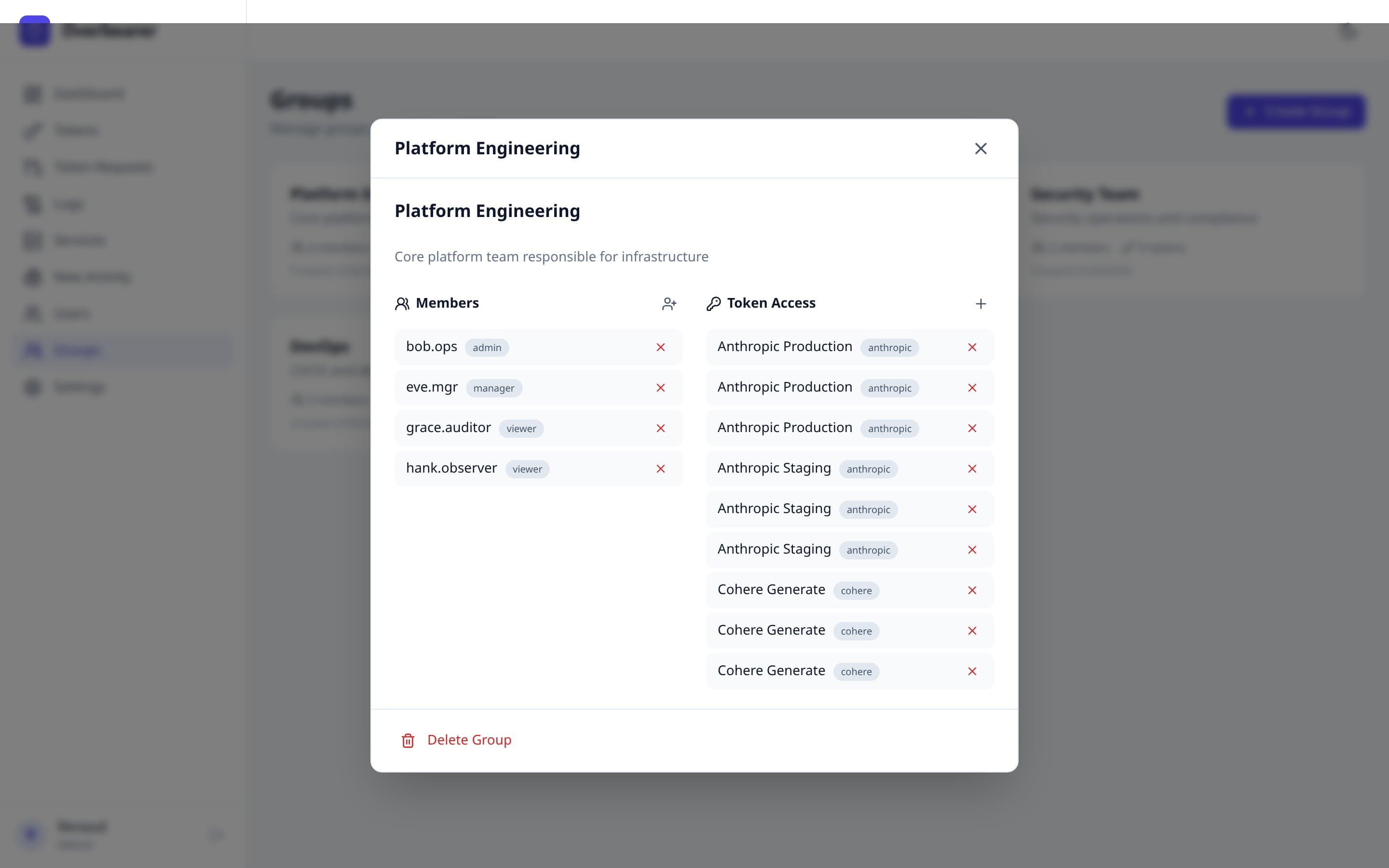
Click any group card to open the detail modal. It has two sections side by side:
- Members — lists all users in the group with their role badge. Click the user-plus icon to add a user. Click the red X to remove them. The group name and description are editable inline.
- Token Access — lists all tokens granted to this group with their provider badge. Click + to grant a token, click X to revoke.
A Delete Group button at the bottom permanently removes the group (with confirmation).
Group-Level Token Access
When a token is granted to a group, all members inherit access. This affects:
- Token visibility — managers who are group members see the token on the Tokens page.
- Log scoping— viewers who are group members see proxy logs for the group's tokens.
- Access badges — the Tokens page shows purple group badges in the Access column.
Settings
Minimum role: Admin
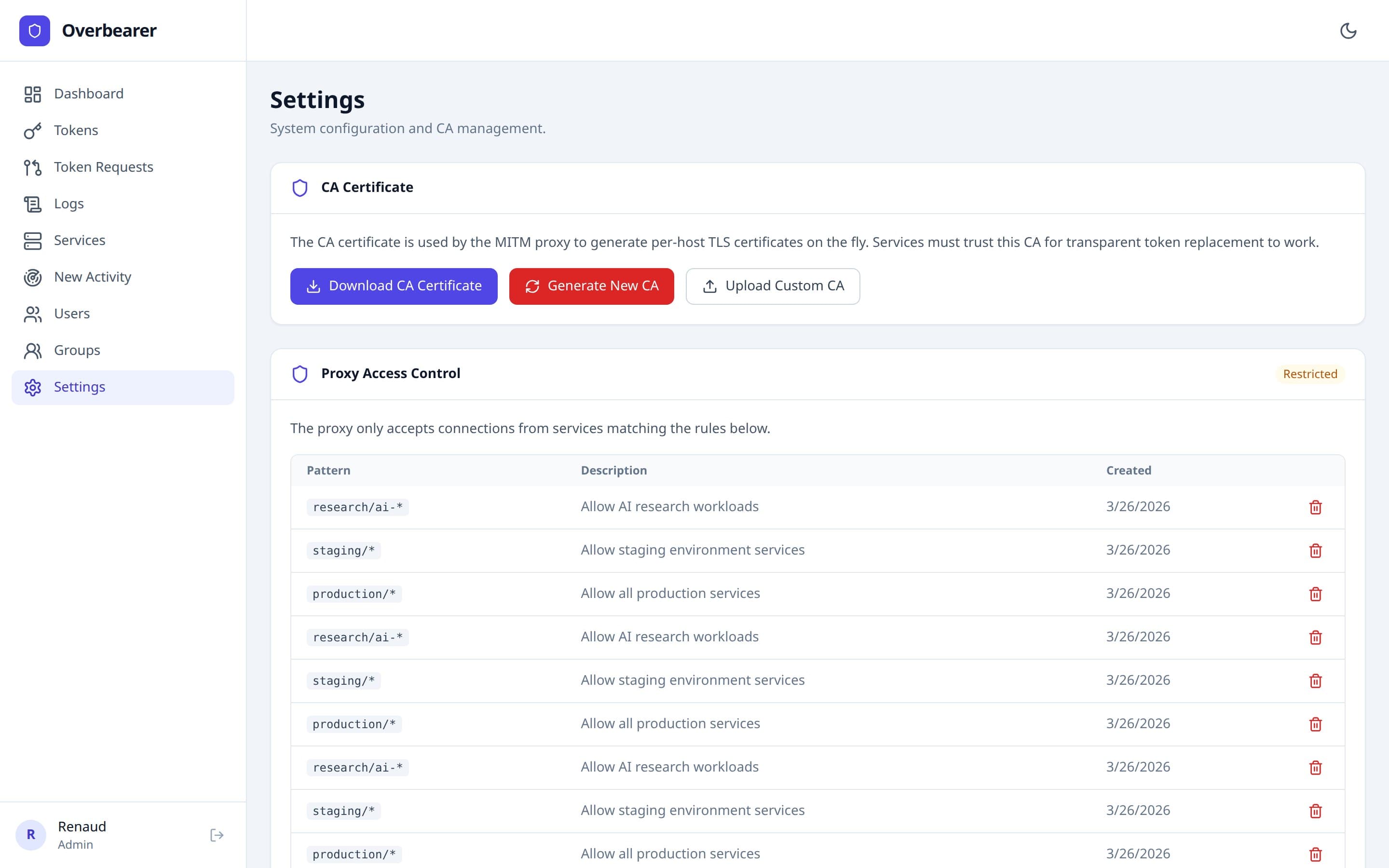
The Settings page has four sections:
CA Certificate
The MITM proxy generates per-host TLS certificates on the fly, signed by a private Certificate Authority. Services must trust this CA for transparent token replacement to work. Three actions:
- Download CA Certificate — downloads the current CA's public certificate in PEM format. Distribute this to services that need to trust the proxy.
- Generate New CA — creates a fresh CA key pair. This invalidates all existing per-host certificates and requires services to trust the new CA.
- Upload Custom CA — paste or upload your own CA certificate and private key in PEM format. The private key is encrypted at rest using AES-256-GCM.
Proxy Access Control
Controls which services can use the proxy. Operates in two modes:
- Open — any service can route traffic through the proxy. A warning banner highlights the security risk.
- Restricted — only services matching the configured ACL rules can connect.
| Column | Description |
|---|---|
| Pattern | A glob-style pattern (e.g. production/*, 10.0.0.0/16). |
| Description | Optional human-readable description. |
| Created | When the rule was added. |
| Delete | Red trash icon to remove the rule. |
Adding the first rule switches the proxy from Open to Restricted mode. Deleting all rules switches it back to Open. New rules are added via the inline form at the bottom of the section.
Passkey Authentication
Shows the current user's passkey status. If a passkey is registered: a green checkmark with confirmation text. If no passkey: a prompt to register one with a button that triggers the browser's WebAuthn flow.
System Information
Displays read-only metadata: product name, UI version, architecture description, and authentication method.
Appendix: Sidebar by Role
| Admin | Manager | Viewer | Requester |
|---|---|---|---|
| Dashboard | Dashboard | Dashboard | Dashboard |
| Tokens | Tokens | Logs | Token Requests |
| Token Requests | Token Requests | Services | — |
| Logs | — | New Activity | — |
| Services | — | — | — |
| New Activity | — | — | — |
| Users | — | — | — |
| Groups | — | — | — |
| Settings | — | — | — |